> For the complete documentation index, see [llms.txt](https://docs.uibakery.io/llms.txt). Markdown versions of documentation pages are available by appending `.md` to page URLs; this page is available as [Markdown](https://docs.uibakery.io/build-with-ai/agent.md).
# Agent
Let's have a look at the AI Builder interface:
1.Top bar
* **UI Bakery icon** - access App settings, Release history, go back to the workspace menu, or access additional links (our docs, community, booking a demo, and more)
* [**Connect Git**](/concepts/source-control.md) - connect your Git repository
* **Preview** - see the real-time preview of the app you're building
* [**Code**](/build-with-ai/features.md#code-view) - see your app code and make changes to it
* [**Database**](/build-with-ai.md#database-connection) - create and manage your primary hosted database
* [**Connect**](/build-with-ai.md#step-2-connect-a-data-source) - connect a hosted database or your own data source right from the Builder
* **Settings** - manage your app settings
* **Reload** - refresh the iframe preview of the app without reloading the page
* [**Switch breakpoint**](/concepts/mobile-layout.md) - switch between a desktop & mobile layout
* **Full screen preview** - see the app in full screen
* [**Release**](/build-from-scratch/getting-started/deploy-your-application-and-invite-users.md#deploying-an-app) - deploy your app or create a draft release
* [**Share**](/build-from-scratch/getting-started/deploy-your-application-and-invite-users.md#sharing-an-app) - invite users to your app, manage their access, and make the app public
2.Agent sidebar
Displays the [**chat**](#chat) component to interact with the UI Bakery Agent.
{% hint style="success" %}
The left side panel is *resizable* - you can adjust its size to suit your workflow and build more comfortably.
{% endhint %}
3.Workspace
Shows the contents of the tab selected in the header, for example, *Preview*, *Code*, *Database*, etc.
4.Bottom panel
* **Logs** - shows the current app logs
* **Git** - used to activate Git when you've connected your Git repo
* **Command palette** - to navigate the org and search for necessary components, projects, etc.
{% hint style="info" %}
You can [disable the command palette](/concepts/workspace-management/account-and-organization.md#disabling-command-palette-for-end-users) for end users, if necessary.
{% endhint %}
## Chat
The Chat area is the main place where you interact with the UI Bakery Agent to build your app, either providing prompts or visual input. Here's what you can also find here:
**a.** Create a new chat with the Agent.
**b.** See the history of all chats and switch between them. You can also search them and delete the chats you don't need any more.
{% hint style="info" %}
By default, chats get the creation date & time stamp name but after the first prompt they're automatically renamed.
{% endhint %}
**c.** Expands/collapses the agent sidebar.
**d.** Here, you type in your prompt for the Agent.
{% hint style="info" %}
If at some point during building, you decide you want to go back to a specific app state, you can use the [*Revert to this checkpoint*](/build-with-ai.md#reverting-to-a-checkpoint) option under the prompt you need.
{% endhint %}
**e.** Displays the amount of [usage credits](/build-with-ai.md#understanding-ai-usage-credits) you have left.
**f.** **Picker tool** - you can select an element on the page that you want to change instead of describing it in text for more minute changes.
**g.** Attach an image to your prompt (for example, of a similar app you want to build) for inspiration.
**h.** You can choose between a **Fast/Smart** model depending on your request. Faster model serves better for some quick edits while the Smart one is best when you want to make some complex changes.
{% hint style="info" %}
The high-powered model requires more usage credits.
{% endhint %}
**i.** Click *this button* or press *Enter* to make your request.
While the agent is working, if the tab with the chat becomes inactive, you will hear a sound notification and a visual indicator will appear on the tab. This allows you to seamlessly work on other things and at the same time be aware that your prompt has been executed.
{% hint style="warning" %}
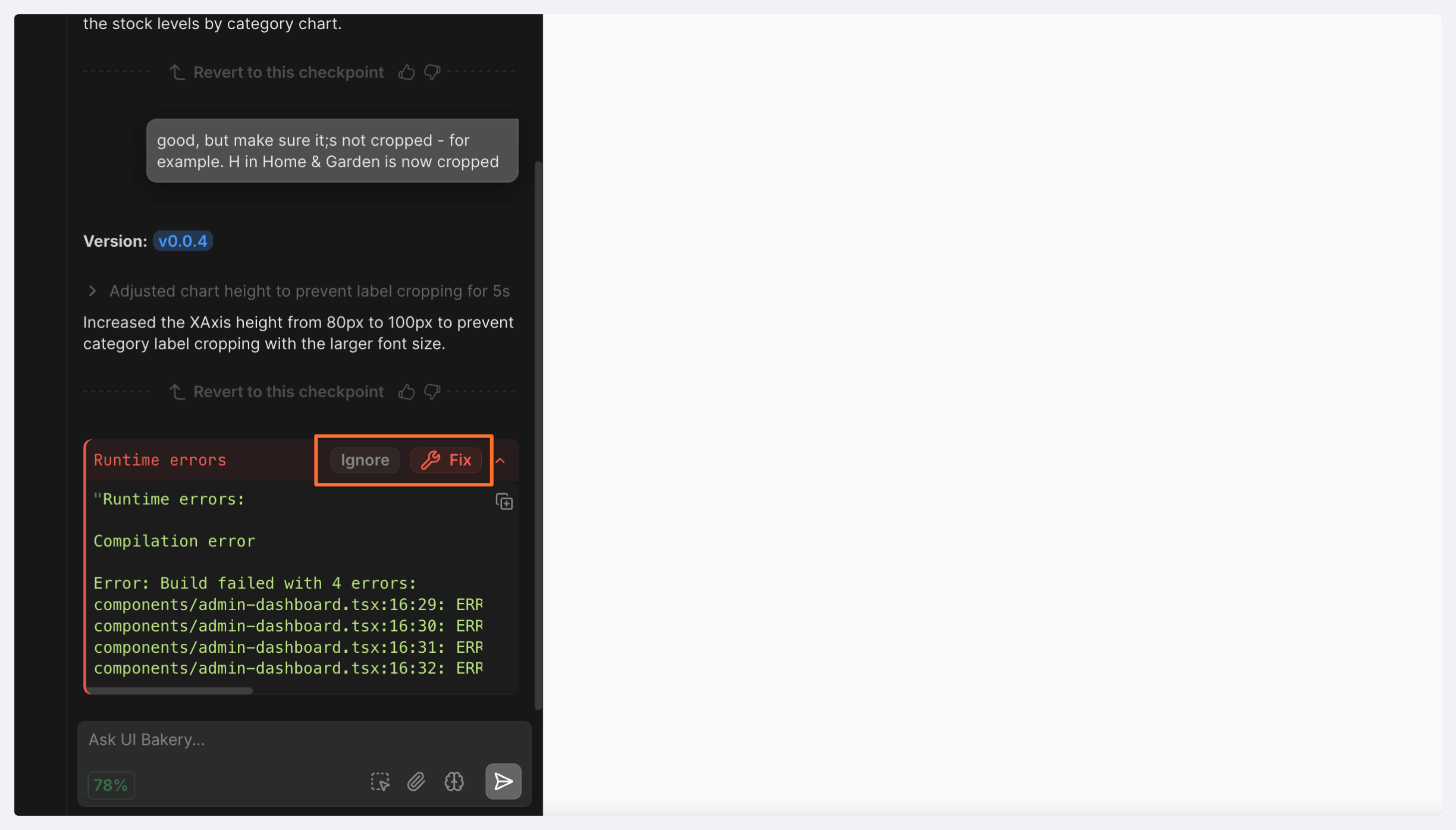
When building an app, you may get some *Runtime errors—*you may choose to fix or ignore them, if they're no longer actual, for example.
{% endhint %}
---
# Agent Instructions
This documentation is published with GitBook. GitBook is the documentation platform designed so that both humans and AI agents can read, navigate, and reason over technical content effectively. Learn more at gitbook.com.
## Querying This Documentation
If you need additional information that is not directly available in this page, you can query the documentation dynamically by asking a question.
Perform an HTTP GET request on the current page URL with the `ask` query parameter, and the optional `goal` query parameter:
```
GET https://docs.uibakery.io/build-with-ai/agent.md?ask=&goal=
```
`ask` is the immediate question: it should be specific, self-contained, and written in natural language.
`goal` is optional and describes the broader end goal you are ultimately trying to accomplish on behalf of the user. GitBook uses it to tailor the answer towards what is most useful for that goal.
The response will contain a direct answer to the question and relevant excerpts and sources from the documentation.
Use this mechanism when the answer is not explicitly present in the current page, you need clarification or additional context, or you want to retrieve related documentation sections.


 {% endhint %}
---
# Agent Instructions
This documentation is published with GitBook. GitBook is the documentation platform designed so that both humans and AI agents can read, navigate, and reason over technical content effectively. Learn more at gitbook.com.
## Querying This Documentation
If you need additional information that is not directly available in this page, you can query the documentation dynamically by asking a question.
Perform an HTTP GET request on the current page URL with the `ask` query parameter, and the optional `goal` query parameter:
```
GET https://docs.uibakery.io/build-with-ai/agent.md?ask=
{% endhint %}
---
# Agent Instructions
This documentation is published with GitBook. GitBook is the documentation platform designed so that both humans and AI agents can read, navigate, and reason over technical content effectively. Learn more at gitbook.com.
## Querying This Documentation
If you need additional information that is not directly available in this page, you can query the documentation dynamically by asking a question.
Perform an HTTP GET request on the current page URL with the `ask` query parameter, and the optional `goal` query parameter:
```
GET https://docs.uibakery.io/build-with-ai/agent.md?ask=