> For the complete documentation index, see [llms.txt](https://docs.uibakery.io/llms.txt). Markdown versions of documentation pages are available by appending `.md` to page URLs; this page is available as [Markdown](https://docs.uibakery.io/build-with-ai/features.md).
# Features
## Code view
In the *Code* tab, you can manage your app code and tweak it without prompting. Having said that, we do **recommend to be careful** when changing the code directly since such actions are not tracked in the release history. It will be impossible to revert to a specific checkpoint if something goes wrong.
You can right click on any folder or file to rename or delete it, and you can also add new files or folders to the existing structure. The *Search* bar at the top allows you to quickly search for any file you want to update.
### AGENTS.md
Below all folders, there's an **AGENTS.md** file—here you can add specific app-level instructions that the Agent will refer to when building an app.\
For example, you can give more details about your application context, specify your coding style or design guidelines, or just any other things you want the agent to apply consistently while building.
It always helps to be specific and clear in your instructions and provide examples to help the Agent better understand your preferences.
## Tools
You can access app settings—either from the UI Bakery icon in the Builder or from the Workspace menu—and configure specific *tool settings*.
{% hint style="success" %}
All tools settings are NOT global and can be configured for each app separately.
{% endhint %}
### Migrations
The migrations tool allows the agent to adapt the database structure if the app requirements change over time or there's some structural mismatch.
It can apply migrations either automatically or manually. If you choose the manual option (*Always ask*), then each time there's a migration, a prompt will appear in the chat and you can select *Execute* or *Reject* there.
{% hint style="info" %}
By default, the *Always allow* option is enabled for all new projects.
{% endhint %}
### Screenshots
Think of this tool as the agent's eyes.\
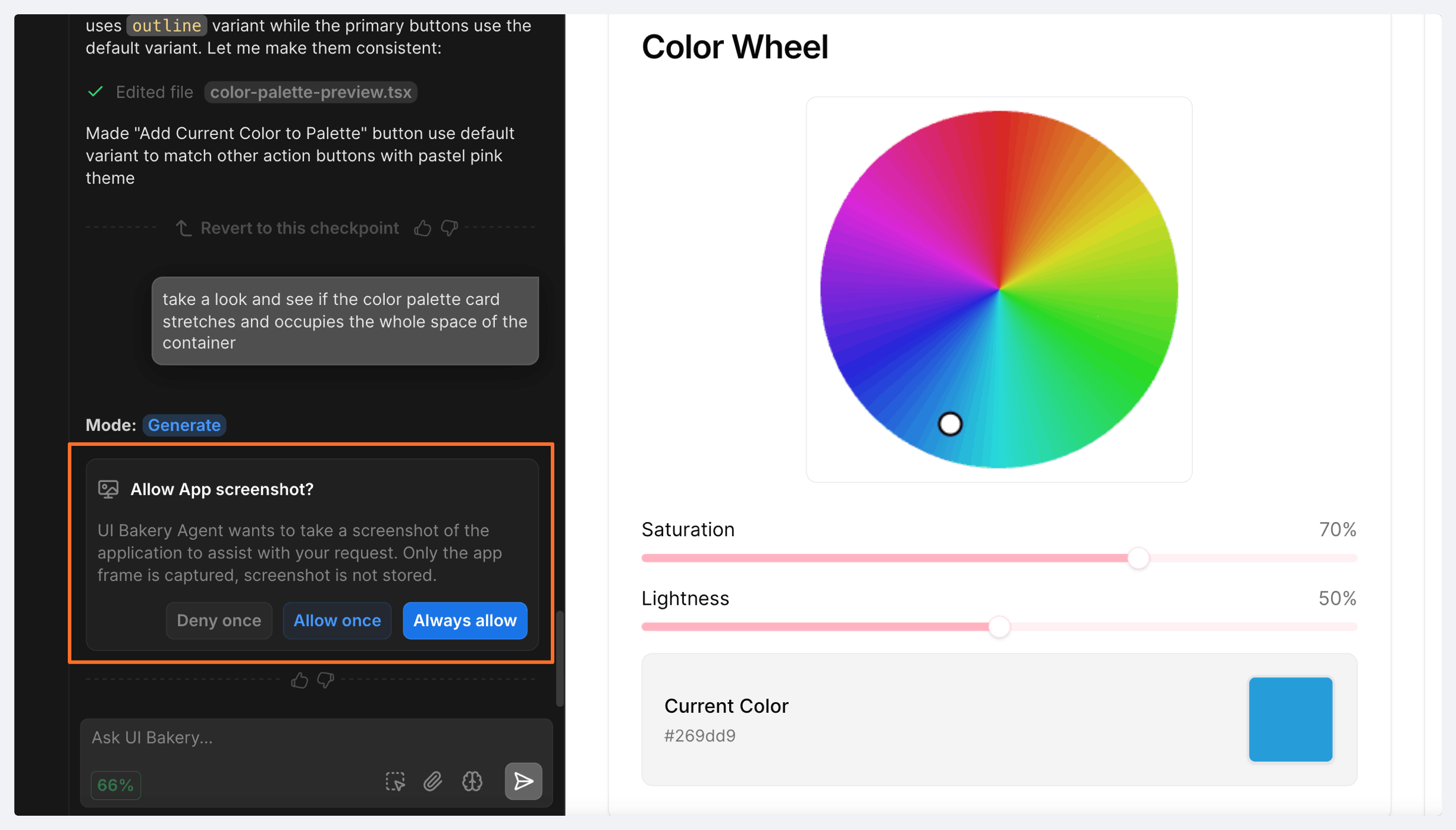
The agent knows what exists in the app's schema, code, and configuration but sometimes apps behave in a different way when they're rendered. The screenshot tool allows the agent to inspect the actual UI state and make decisions based on what users really see.
For this tool, you can also choose either the automatic or manual option. If you choose *Always ask*, then each time the agent needs to take a screenshot, you'll see a prompt with the following options: *Always allow*, *Allow once*, and *Deny once*.
You can select the option that best fits your specific needs.
{% hint style="info" %}
By default, the *Always allow* option is enabled for all new projects.
{% endhint %}
### Executing actions
This tool is more like the agent's hands or sensors.\
It allows the agent to safely run controlled operations to inspect your app data instead of guessing, for example, query a database, check system state, call an API, etc. The results of this action call are used only to answer the user's request.
For this tool, you can also choose either the automatic or manual option. If you choose *Always ask*, then each time the agent needs to make an action call, you'll see a prompt with the following options: *Always allow*, *Allow once*, and *Deny once*.
{% hint style="info" %}
By default, the *Always ask* option is enabled for all new projects.
{% endhint %}
### Syncing data sources
This tool allows the agent to synchronize the data source structure to maintain an accurate schema model of your system. It is especially important in cases when:
* A column is renamed
* A new column is added
* A table is removed
* and others
Essentially, if anything changes in the database, the agent needs to synchronize those changes to avoid any possible issues.
Data source sync can happen either automatically or manually. If you choose the manual option (*Always ask*), then each time a data source sync is required, a prompt will appear in the chat and you can select the option that suits you.
{% hint style="info" %}
By default, the *Always allow* option is enabled for all new projects.
{% endhint %}
## Multi-page apps
With the UI Bakery AI agent, you can create multi-page applications that support persistent state and URLs with query parameters.
In the URL, you can see the page you're currently on—the parameter changes when switching between pages. The app also stays on the same page after reload and works with browser back/forward navigation as well.
## Conditional actions
In your app, it's possible to create **conditional** **actions** so that you can control action execution. It can be especially useful in such cases as:
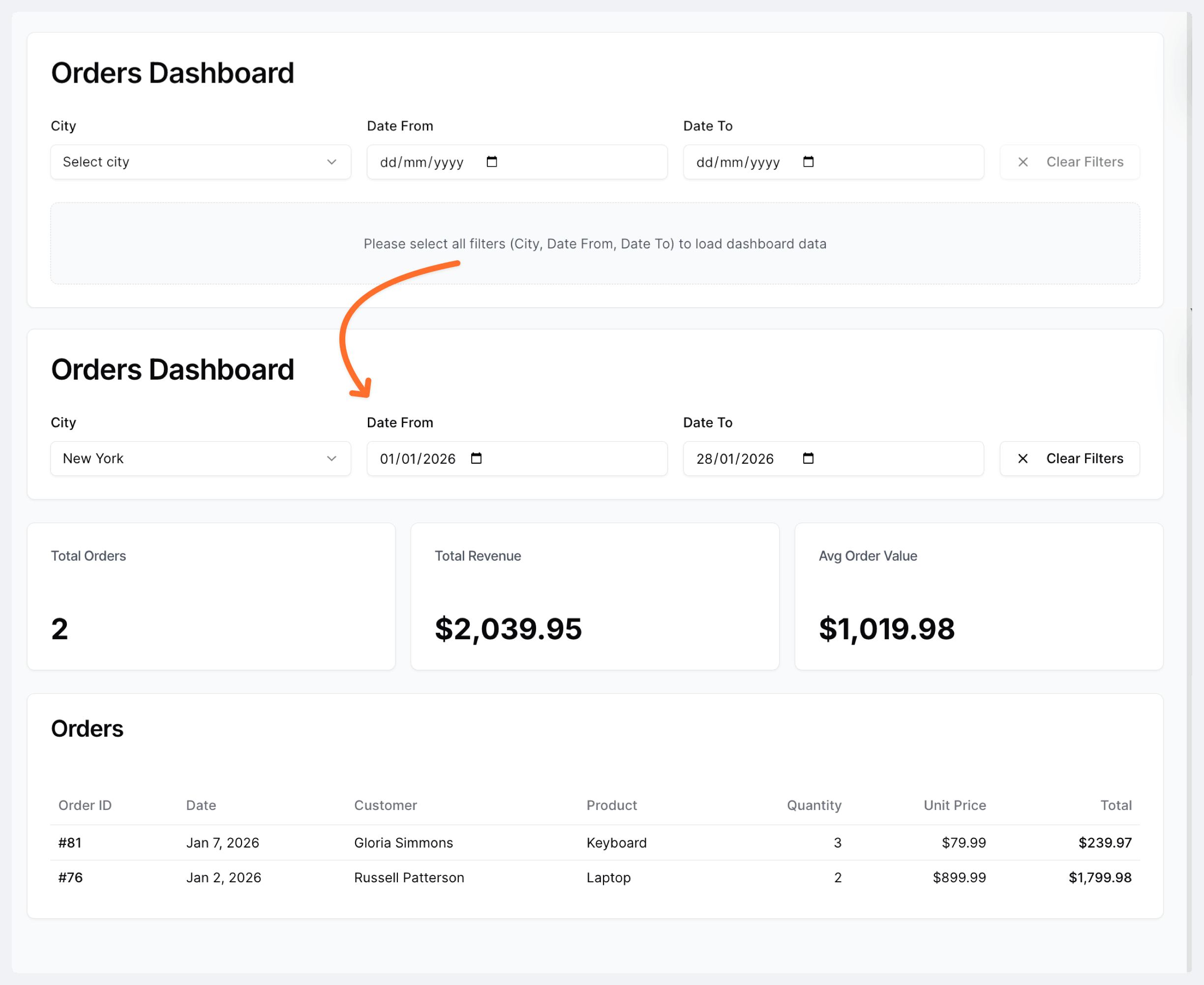
* Not loading data until all filters have been selected
* Fetching data only after a modal or tab is opened
* Blocking mutations if a form is invalid or permissions are missing
* and others
## User context
The AI agent can access information about the currently logged-in user through the `{{user}}` context. This allows you to personalize actions, filter data, or apply user-based permissions.
Common fields include:
* `{{user.email}}`
* `{{user.name}}`
* `{{user.id}}`
## Login
If you want to add login to your app, the AI agent will suggest the following options:
* **Built-in UI Bakery auth** - Users can access the app through the UI Bakery workspace login. This option is good for internal apps and you can use SSO, RBAC, audit logs, and other out-of-the-box security features.
* **Custom auth** - Allows you to create your own custom login page with custom user database and auth logic within the application. This is a good choice for customer portals and similar apps where users are relevant only for this specific application.
You can choose one of these options in the prompt and the AI agent will implement the authentication.
---
# Agent Instructions
This documentation is published with GitBook. GitBook is the documentation platform designed so that both humans and AI agents can read, navigate, and reason over technical content effectively. Learn more at gitbook.com.
## Querying This Documentation
If you need additional information that is not directly available in this page, you can query the documentation by asking a question.
Perform an HTTP GET request on the following URL with the `ask` and `goal` query parameters:
```
GET https://docs.uibakery.io/build-with-ai/features.md?ask=&goal=
```
`ask` is the immediate question: it should be specific, self-contained, and written in natural language.
`goal` is what the user is ultimately trying to achieve, the reason they need the answer. Sharing it helps GitBook give you a better, more relevant answer. A goal is most helpful when it describes the outcome the user wants rather than restating the question. For example, with `ask=how do I create an API token`, a goal like `automate deployments from our CI pipeline` lets GitBook tailor the answer to that use case.
The response will contain a direct answer to the question and relevant excerpts and sources from the documentation.
Use this mechanism when the answer is not explicitly present in the current page, you need clarification or additional context, or you want to retrieve related documentation sections.


.png?alt=media&token=68754cfd-28f5-4797-9575-1d9a0582d167)

%402x.png?alt=media&token=a27c31b1-eeaf-4a2a-ab66-4413a3d44ed6)