> For the complete documentation index, see [llms.txt](https://docs.uibakery.io/llms.txt). Markdown versions of documentation pages are available by appending `.md` to page URLs; this page is available as [Markdown](https://docs.uibakery.io/concepts/components/custom-component/unrestricted-custom-component.md).
# Unrestricted custom component
{% hint style="warning" %}
The feature is deprecated, please refer to [this article](/concepts/custom-components-2.0.md) for information on building custom components in UI Bakery.
{% endhint %}
When you require a component not available in our Components list, you can develop it by utilizing the **unrestricted custom component**. With it, you can embed any HTML or JavaScript code without any constraints directly into any UI Bakery page.
{% hint style="success" %}
Unlike custom components, unrestricted custom components **are NOT contained within an iframe** and can be used for **displaying overlays, popups**, and other similar elements.
{% endhint %}
## Component anatomy
In contrast to custom components, unrestricted custom components are rendered on the same level as the rest of UI Bakery components.
{% hint style="warning" %}
We advise you to exercise caution while using this type of component since it may disrupt the UI Bakery page layout and styles and potentially access app data.
{% endhint %}
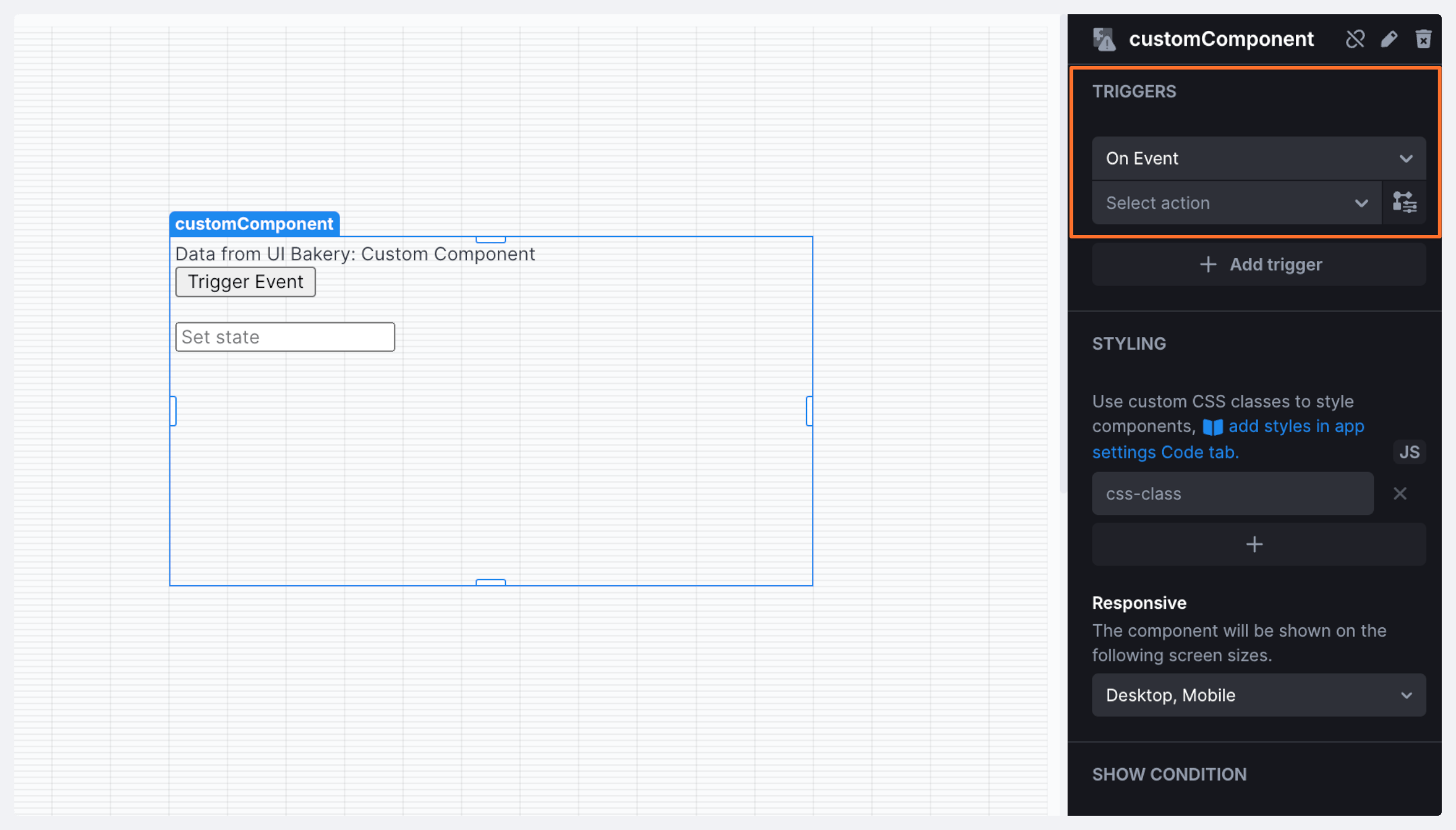
Here is an example of an unrestricted custom component:
<!-- 3rd party scripts and styles -->
<script src="https://unpkg.com/react@17/umd/react.production.min.js" crossorigin></script>
<script src="https://unpkg.com/react-dom@17/umd/react-dom.production.min.js" crossorigin></script>
<script src="https://unpkg.com/babel-standalone@6/babel.min.js"></script>

<!-- root element where the component will be rendered -->
<div class="root"></div>

<!-- custom styles -->
<style>
  .custom-component-container p { margin-top: 0 }
  .custom-component-container button { margin-bottom: 1rem }
  .custom-component-container {
    display: flex;
    flex-direction: column;
    align-items: flex-start;
  }
</style>

<!-- custom logic -->
<script type="text/babel">
  function CustomComponent() {
    // receive data from UI Bakery
    const data = UB.useData();

    return (
      <div className="custom-component-container">
        <p>Data from UI Bakery: {data.title}</p>
        <button onClick={() => UB.triggerEvent("Data from custom component")}>Trigger Event</button>
        <input onChange={(event) => UB.updateValue(event.target.value)} placeholder="Set state"></input>
      </div>
    );
  }

  const Component = UB.connectReactComponent(CustomComponent);
  ReactDOM.render(<Component />, UB.container.querySelector('.root'));

  // it's a good practice to destroy all resources you consumed in your custom component.
  UB.onDestroy(() => ReactDOM.unmountComponentAtNode( UB.container.querySelector('.root')));
</script>
{% hint style="info" %}
UI Bakery will put all script tags with the src attribute to the end of the head tag. All scripts with the same src attributes will be loaded only once. I**f you remove a script, make sure to reload the page.**
{% endhint %}
## Passing data to a component
{% hint style="info" %}
The API and settings for the Unrestricted custom component are the same as those of the [Custom component](/concepts/components/custom-component.md).
{% endhint %}
To pass data to your custom component you can use a component's **Data** property. You simply need to specify the JavaScript object that contains the necessary data, for example:
```javascript
{
data: [1,2,3],
display: 'only_new',
}
```
Additionally, you can pass data using **JS API** in your actions:
```javascript
ui.customComponent.setData({ ... })
```
* To access this data within the custom component, you can use:
```javascript
const data = UB.useData()
```
* You can also subscribe to data updates with the following code:
```javascript
UB.onData(data => {
console.log('new data', data);
});
```
## Receiving data and triggering actions from a component
If your custom component produces events or needs to trigger an action, you can use the following code:
* ```javascript
UB.updateValue('Data from custom component');
```
Use this code inside a component to set its value. Once executed, the new value will be available as {{`ui.customComponent.value}}`.
* ```javascript
UB.triggerEvent('Data from custom component');
```
Use this code inside a component to trigger an action. You also need to subscribe your action to the **On Event** trigger of the custom component. Once the `UB.triggerEvent('data')` is executed, the assigned action will be triggered.
The data supplied to the `triggerEvent()` function is available as the`{{ui.customComponent.value}}` variable as well as the `{{params}}` variable in the assigned action.
---
# Agent Instructions
This documentation is published with GitBook. GitBook is the documentation platform designed so that both humans and AI agents can read, navigate, and reason over technical content effectively. Learn more at gitbook.com.
## Querying This Documentation
If you need additional information that is not directly available in this page, you can query the documentation dynamically by asking a question.
Perform an HTTP GET request on the current page URL with the `ask` query parameter, and the optional `goal` query parameter:
```
GET https://docs.uibakery.io/concepts/components/custom-component/unrestricted-custom-component.md?ask=&goal=
```
`ask` is the immediate question: it should be specific, self-contained, and written in natural language.
`goal` is optional and describes the broader end goal you are ultimately trying to accomplish on behalf of the user. GitBook uses it to tailor the answer towards what is most useful for that goal.
The response will contain a direct answer to the question and relevant excerpts and sources from the documentation.
Use this mechanism when the answer is not explicitly present in the current page, you need clarification or additional context, or you want to retrieve related documentation sections.